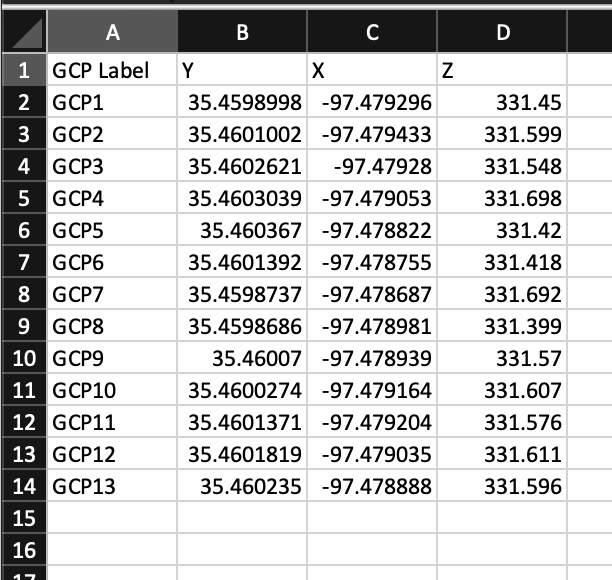
I’ve watched numerous videos and read several posts but obviously I’m failing to grasp something. I have created a .csv file with what I presume to the best of my knowledge to be in the correct format. Yet webODM has a red shading when I try to drag and drop.
Here are my details explanations about how to use the GCP module of WebODM
Step 1, have the coordinates of the GCPs in the real world and know in which coordinate system.
These coordinates should be in a txt file in the following format:
Coordinate system in String proj4 format
NameOfGCP1 XCoord YCoord ZCoord
NameOfGCP2 XCoord YCoord ZCoord
NameOfGCP3 XCoord YCoord ZCoord
NameOfGCP4 XCoord YCoord ZCoord
...
To resume my original example on the EPSG:2154 system, I will look for the string proj on epsg.io and with the coordinates I get the concrete file :
+proj=lcc +lat_0=46.5 +lon_0=3 +lat_1=49 +lat_2=44 +x_0=700000 +y_0=6600000 +ellps=GRS80 +towgs84=0,0,0,0,0,0 +units=m +no_defs +type=crs
GCP4 1036002.098 6323630.365 407.474
GCP1 1035977.513 6323586.654 402.215
GCP5 1035948.498 6323568.843 401.022
GCP0 1035911.069 6323572.408 402.032
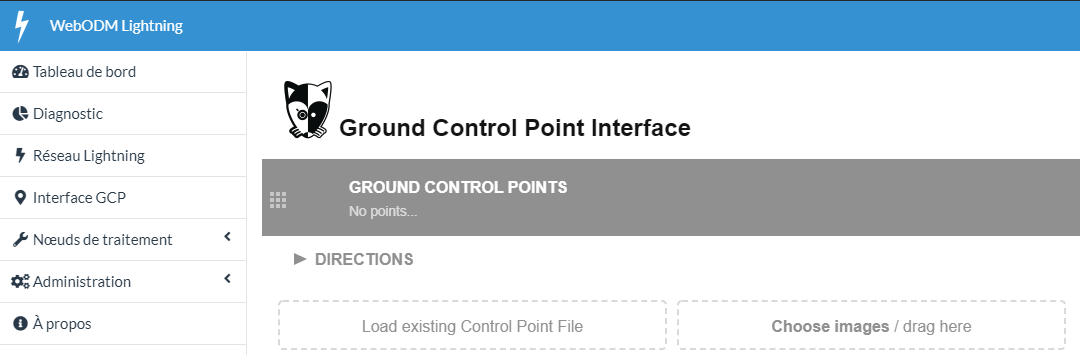
This file is the one you have to provide in the Load Existing Control Point File button in the GCP Interface tab:
Step 2:
Once this file is selected, the map on the right should position markers at the actual positions of the GCPs. If this is not the case, there is a problem with the coordinates of the GCPs or the announced Coordinate System.
Step 3:
After that you have to import the images and proceed to the selection of the GCPs on the images and their correspondence on the map. This is for me the simplest step but where the interface is the least well done (I highly recommend using GCP Editor Pro to generate the complete GCP file)
The Export File button allows you to get the contents of the gcp.txt file, in my case :
+proj=lcc +lat_0=46.5 +lon_0=3 +lat_1=49 +lat_2=44 +x_0=700000 +y_0=6600000 +ellps=GRS80 +towgs84=0,0,0,0,0,0 +units=m +no_defs +type=crs
1036002.10 6323630.36 407.474 2371.71 637.84 100000900228.JPG GCP4
1035977.51 6323586.65 402.215 2501.64 2880.46 100000900228.JPG GCP1
1035977.51 6323586.65 402.215 3342.53 2209.49 100000900229.JPG GCP1
1035977.51 6323586.65 402.215 2754.54 3256.05 100000900230.JPG GCP1
1035948.50 6323568.84 401.022 1553.19 1362.27 100000900229.JPG GCP5
1035948.50 6323568.84 401.022 1927.00 1443.70 100000900230.JPG GCP5
1035948.50 6323568.84 401.022 1886.55 3002.02 100000900233.JPG GCP5
1035948.50 6323568.84 401.022 1917.79 1961.40 100000900231.JPG GCP5
1035948.50 6323568.84 401.022 1909.44 2482.93 100000900232.JPG GCP5
1035911.07 6323572.41 402.032 2391.00 887.97 100000900233.JPG GCP0
1035911.07 6323572.41 402.032 2414.42 336.28 100000900232.JPG GCP0
I clearly didn’t take the time to select enough occurrences of each GCP but the principle is exposed.
Step 4:
Select the images and the gcp file in the task for WebODM. Everything should be fine at this point, just wait.
2 Likes
This topic was automatically closed 30 days after the last reply. New replies are no longer allowed.