Hello, i installed WebODM successfully on windows 11 through docker.
Being a land surveyor and not an IT I’m confused between clusterODM, NodeODM…
I use only a computer, not a network.
If I want to split a large dataset on a single computer, and merge them when they will be done what should I need? NodeODM is already in WebODM if I’m right. Do I need also ClusterODM?
Sorry for my ignorance, but I didn’t find helpful documentation to clarify my doubts.
We usually answer most questions. Your question is still readable, it’s useful for others to see the answer. If you don’t mind me reverting to your original question so I can answer it for others to find.
Or better yet: if you’ve found the answer post what you were curious about and the answer to your question as well.
The beginning is a little frustrating. I didn’t even understand how to enable split-merge in WebODM.
Let me remember you that I’m not using it over a network, but on a single machine. Thanks
On a single machine, you only need to set the value of split to a number smaller than the max size your machine can handle. Split will then run each of the split parts of the dataset in sequence on your single machine, so no need for ClusterODM nor separate nodes.
For RAM, budget about 75MB per image, so if you have a machine with 16GB of RAM, you might want to set your split somewhere around 250 images. And if it fails for out of memory, turn that down to 200 images for your split value.
edit: normal budget for processing is typically minimum 50MB per image, but given split automatically generates groups larger than specified to allow for overlap, budget 75MB instead.
additional edit: if you are flying with RTK or PPK, then set sm-no-align to true, and set GPS-Accuracy to 0.4 or whatever your largest ZDOP is.
I have a DJI MIni 3 and Base+Receiver (Topcon-Sokkia) to measure the land.
I’m trying the Split with few images (5 images - the minimum).
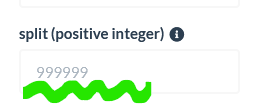
I could choose “split (positive integer)” or “split-overlap (positive integer)” but they are GREY out.
Question 1: should i process 2 or more processes then merge them?
Question 2: should i use “split-overlap (positive integer)”?
Question 3: how do i merge them all togheter?
Question 4: when+why “split-overlap (positive integer)” are GREY out?
Sorry, but i’m not “quick” understanding the workflow and i didn’t find clear documentation (for me).
Thank you very much for helping.
I really appreciate it.
If you were processing locally, you would use split (positive integer), and I wouldn’t set it to the minimum, I would use my estimation based on available RAM above. You can modify it’s behavior with split-overlap (positive integer), but I wouldn’t recommend you use that setting in most circumstances.
Are you maybe using WebODM Lightning? That doesn’t allow the use of split.
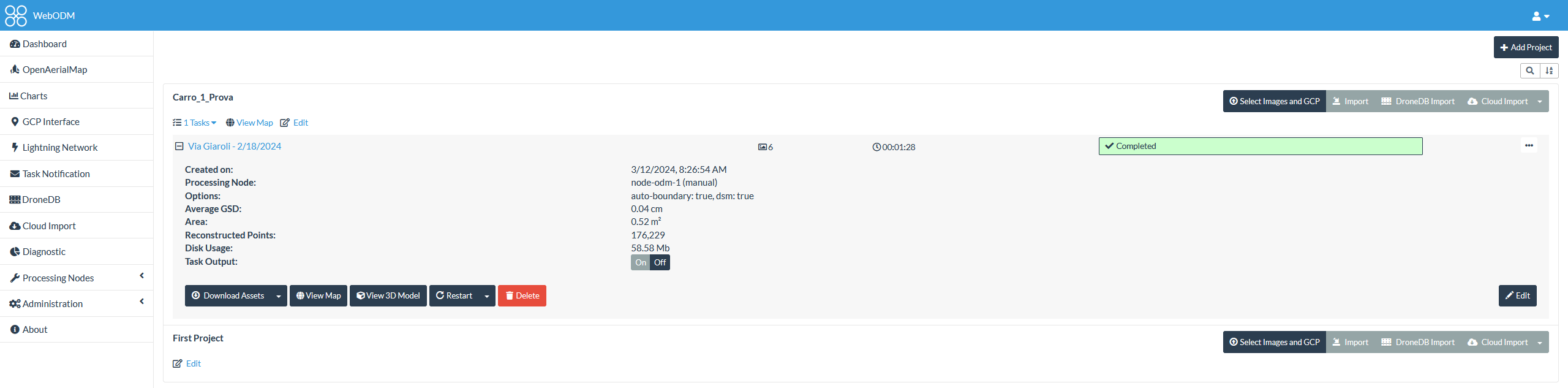
Lightning? I don’t think so. I attach a screenshot.
2)…if the first day i connect GCP’s to the first 100 images and i have 200 more to go the next day how can i interrupt the job the first day and continue it the next day if not using split-merge?
3)…where do i change split value from 9999 to something else?
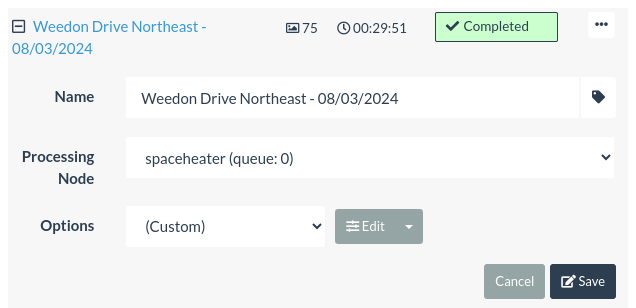
With the task expanded like that, hit the edit button:
That will start the task editing process. From here you can hit the edit button for options in the lower right here:
This will give you a long list of options. I usually issue a control-f to find the option I need, or they’re in alphabetical order. Either way, you’ll scroll down to split (positive integer), and set that to something compatible with your available RAM (roughly equal to the amount of RAM you have divided by 75MB), here I have it changed from the default 999999 to 200 :
Click the “Save” in the lower right to save your Options changes:
Then click “Save” again to save your task changes:
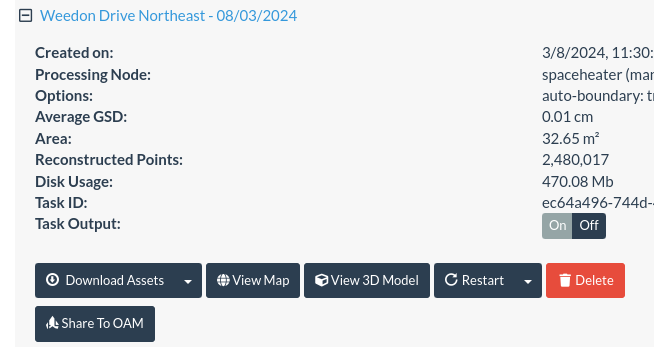
Finally, you’ll click that “Restart” button to run the task using split:
If you’re doing this with a new task, you’ll just edit your task settings from the beginning.
SOLVED!!!
I understood how to get to SPLIT from the beginning, but in my experience with software when something is of GREY color it means that it’s disabled, not editable!
For a “unknown” reason i made a click over the GREY numbers “99999” and MAGICALLY saw that it was blinking ad editable.
In my brain (i have a master in architecture) the GRAY color means NOT AVAILABLE/EDITABLE.
Would better be empty with a suggestion on the side by parenthesis (ex. 9999).
Thank you for spending your time!
P.S. Unfortunately Piero is probably very busy and doesn’t answer to: